
Claude Code Install and Usage Guide: From Installation to Your First Code Change
How to install Claude Code, sign in, choose a permission mode, write a CLAUDE.md, and roll back when something goes wrong. Based on the official docs as of October 2026.
LiuLuck13 min
On this page
- Check three things first
- Entry points: terminal, desktop app, editor
- Step 1: Install
- If you see "claude: command not found"
- Step 2: Sign in and start
- Trusting the folder
- Step 3: Ask your first question
- Step 4: Let it make your first change
- Permission modes: how often should it ask?
- Use Git: what if something breaks?
- Command cheat sheet
- CLAUDE.md: help it remember your project
- Connect external tools (MCP)
- How to write a good prompt
- What it is good at, and what to avoid
- Security essentials
- Updating and uninstalling
- One-page recap
- How it maps to Codex
- Official links
Claude Code is a coding assistant from Anthropic. You start it inside a project folder and tell it what you want in plain language. It reads files, edits code, runs commands, and investigates errors, and it asks before it changes anything.
This guide starts from zero: install it, sign in, ask your first question, let it make your first change, and then cover the places beginners most often get hurt (permissions, undoing changes, secrets).
Check three things first
- An account. Claude Code needs one of these:
- A Claude Pro, Max, Team, or Enterprise subscription
- A Claude Console account (pay by API usage)
- Access through a cloud provider such as Amazon Bedrock, Google Cloud, or Microsoft Foundry (mostly used at companies)
The official docs are explicit: the free claude.ai plan does not include Claude Code.
-
A supported region. Claude is only available in the countries Anthropic lists. Check that yours is on the list before you start. This site also has notes on account restrictions and bans (in Chinese): What I learned after 3 Claude bans, part 1 and part 2.
-
A computer that meets the requirements:
| System | Requirement |
|---|---|
| macOS | 13.0 or later |
| Windows | Windows 10 1809 or later |
| Linux | Ubuntu 20.04+, Debian 10+, Alpine 3.19+ |
| Memory | 4 GB or more |
| Network | An internet connection |
You do not need to install Node.js first.
Entry points: terminal, desktop app, editor
Claude Code comes in several forms:
| Entry point | Who it suits |
|---|---|
| Terminal (CLI) | The most complete option and the focus of this guide. Start here if you want it as a daily tool |
| Desktop app | You would rather avoid the command line. Available for macOS, Windows, and Linux |
| VS Code / JetBrains extension | You write code in an editor and want to review diffs there |
| Web (claude.ai/code) | Use it in the browser with nothing to install |
If you have never used a terminal, read the official terminal guide first. It shows how to open one and how to paste a command.
Step 1: Install
Pick one method. When it finishes, close the terminal and open a new one.
macOS, Linux, WSL (recommended by the docs):
curl -fsSL https://claude.ai/install.sh | bash
Windows PowerShell:
irm https://claude.ai/install.ps1 | iex
Windows CMD:
curl -fsSL https://claude.ai/install.cmd -o install.cmd && install.cmd && del install.cmd
How to tell PowerShell from CMD: a PowerShell prompt starts with PS C:\, while a CMD prompt is just C:\. Pasting into the wrong one gives an error. In PowerShell, the CMD command complains that && is not a valid statement separator. In CMD, irm is reported as not recognized.
Other ways to install:
brew install --cask claude-code        # Homebrew
winget install Anthropic.ClaudeCode    # Windows WinGet
npm install -g @anthropic-ai/claude-code   # npm, needs Node.js 22 or later
There are also apt, dnf, and apk repositories for Debian, Fedora, RHEL, and Alpine. See the official install page. If you use npm, do not add sudo. The docs specifically warn that it causes permission problems.
On native Windows, it helps to also install Git for Windows so Claude Code can use its Bash tool. Without it, Claude Code falls back to PowerShell.
Verify:
claude --version
If it prints a version number (something like 2.1.295 (Claude Code)), you are done. For a more detailed health check, run:
claude doctor

If you see "claude: command not found"
This is the most common problem. It means the install folder is not on your PATH yet. First make sure you closed the old terminal and opened a new window. If that does not help, follow the official PATH fix. On macOS and Linux the native installer puts the launcher at ~/.local/bin/claude, so check that this folder is on your PATH.
The installer shows no progress bar while it downloads, so it can look stuck. Just wait for it to finish.
Step 2: Sign in and start
Go to the project you want to work on and type claude:
cd /path/to/your/project
claude
The first launch asks you to sign in. Follow the prompts and approve access in your browser, using one of the account types above. Your credentials are saved, so you will not need to sign in again. To switch accounts later, type /login inside Claude Code.
If you have set the ANTHROPIC_API_KEY environment variable and you approve the key when Claude Code asks, it skips the sign-in. In that case you are billed by API usage, not against your subscription.
Trusting the folder
The first time you start Claude Code in a folder, it also runs a safety check. It asks whether this is a project you created or one you trust, and reminds you that once you trust it, Claude Code can read, edit, and execute files in that folder.
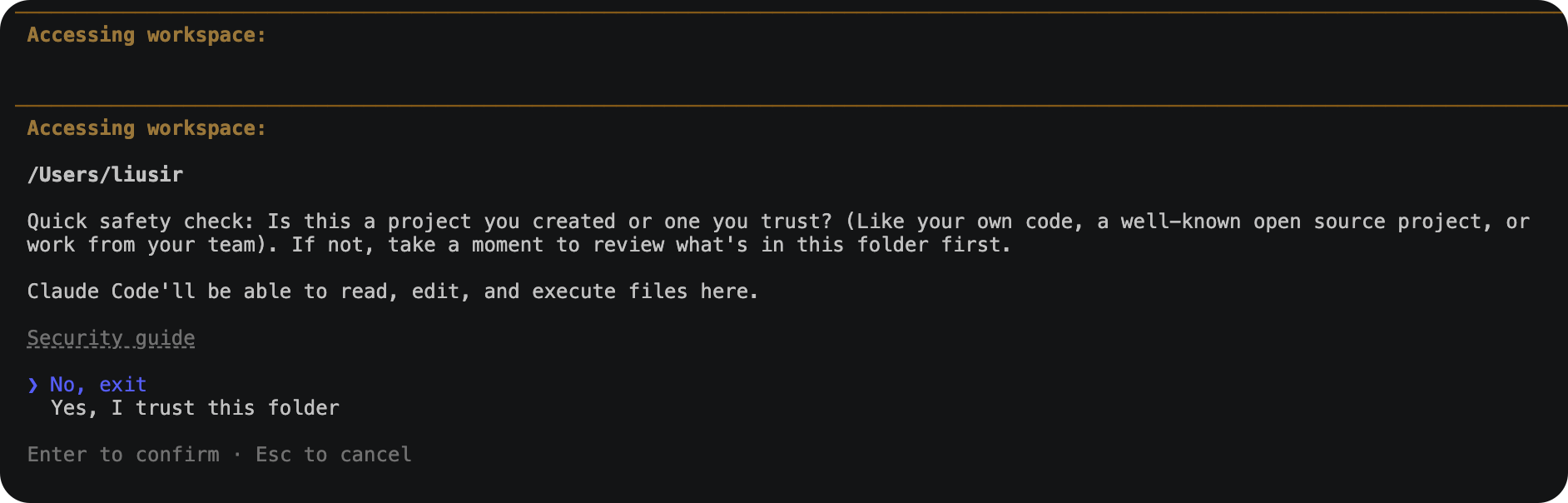
- The cursor starts on
No, exit. To continue, move toYes, I trust this folderwith the arrow keys and press Enter. Press Esc to cancel. - Trusting is fine for your own code, well-known open source projects, and your team's projects. For a folder someone sent you, look through it first.
- This screenshot was taken in the home folder, which is too broad. As described above,
cdinto the specific project first and then runclaude, so it only touches that project.
After you confirm, the version, current model, and working folder appear above the prompt. Type /help to see the available commands, or /resume to continue an earlier conversation.
Step 3: Ask your first question
Do not change anything yet. Let it read the project:
What does this project do?
What technologies does it use? Where is the entry point?
Explain the folder structure
Claude Code reads your files as needed, so you do not have to paste code. You can also ask it about itself, for example "how do I create custom skills".
Step 4: Let it make your first change
Add a hello world function to the main file
It finds a suitable file, shows you the change, and asks for your approval before making it. Look it over and choose Yes if it is fine.
That is a permission prompt. The next section explains how to control them.
Permission modes: how often should it ask?
A permission mode decides what Claude Code may do without asking you. Press Shift+Tab at any time to switch modes.
| Mode | What it does without asking | Best for |
|---|---|---|
default (shown as Manual in the interface) | Read files only | Unfamiliar projects and sensitive work, where you check every step |
acceptEdits | Read and edit files, plus common file commands such as mkdir, mv, cp | You are watching the changes and want fewer confirmations |
plan | Read only. It does not edit and proposes a plan first | Having it study the code and draft a plan before acting |
auto | Nearly everything, with a second model running safety checks in the background | Long tasks where you do not want constant interruptions |
dontAsk | Read only, plus tools you approved in advance | Locked-down automation scripts |
bypassPermissions | Everything, with no checks | Only inside an isolated container or virtual machine |
A few notes:
- According to the docs, from version 2.1.283 on, interactive terminal sessions start in
automode by default (this needs a model that supports auto mode, and an organization admin can turn it off). Earlier versions did this only for Pro, Max, and Team plans. So your first session may not ask for every step. Check the mode shown in the interface, and pressShift+Tabto return to Manual if you want. - You can also choose a mode at launch:
claude --permission-mode plan. - The command-line flag for
bypassPermissionsis--dangerously-skip-permissions, and "dangerously" is not decoration. Do not use it on a computer that holds real data. - A safe combination for beginners: start unfamiliar tasks in
planso it proposes a plan, then switch to Manual oracceptEditsto execute it once you have read it.
Use Git: what if something breaks?
AI edits quickly, so you need to be able to undo quickly too. Two habits help:
- Commit before you start. Ask it to "commit the current changes", or run
git commityourself. Whatever happens afterward, you can return to this point. - Use Claude Code's built-in undo. Type
/rewind(aliases/checkpointand/undo) to roll the conversation and the code back to an earlier point.
Claude Code can also run Git for you if you ask in plain language:
Which files have I changed?
Commit my changes with a clear message
Create a new branch called feature/quickstart
Help me resolve this merge conflict
Command cheat sheet
When launching from the terminal:
| Command | What it does |
|---|---|
claude | Start interactive mode |
claude "fix the build error" | Start interactive mode with a one-line task |
claude -p "explain this function" | Ask once, print the answer, and exit (good for scripts) |
claude -c | Continue the most recent conversation in this folder |
claude -r | Pick an earlier conversation to resume |
claude update | Update to the latest version now |
claude doctor | Check that the install and settings are healthy |
Inside a session (start with /):
| Command | What it does |
|---|---|
/help | Show the available commands |
/init | Generate a CLAUDE.md for the project |
/clear | Clear the conversation and start a new task |
/compact | Summarize the conversation to free up context |
/model | Switch models |
/resume | Resume an earlier conversation |
/rewind | Roll back to an earlier point |
/permissions | Manage allow, ask, and deny rules |
/usage | See this session's cost and your plan limits |
/status | Show version, model, account, and connection status |
/memory | Edit CLAUDE.md and toggle auto memory |
/mcp | Manage connections to external tools |
/exit | Quit (or press Ctrl+D twice) |
Tip: typing / lists the commands and skills available to you. Use Tab to complete and ↑ to browse your input history.
CLAUDE.md: help it remember your project
Every new conversation starts from scratch. To make it remember how to run tests or what your code style is, write that down in CLAUDE.md, which is read automatically at startup.
| Location | Scope |
|---|---|
./CLAUDE.md or ./.claude/CLAUDE.md | This project, and can be committed for the team |
~/.claude/CLAUDE.md | Your personal preferences across all projects |
./CLAUDE.local.md | Only you, only this project. Add it to .gitignore |
The easiest start is to run /init in the project. It reads the code and drafts a file with build commands, how to run tests, and the conventions it finds. Then edit it by hand.
When you write it:
- Specific beats vague. "Run
npm testafter changes" works better than "care about code quality". - Keep it short. The docs suggest under 200 lines per file. Long files use up context and are followed less reliably.
- It is guidance, not enforcement. CLAUDE.md is read as context, and Claude may not follow it every time. To truly forbid an action, use permission rules or hooks.
- If the project already has an
AGENTS.md(the equivalent file used by Codex and other tools) and noCLAUDE.md, Claude Code readsAGENTS.mdby default. If both exist, it reads onlyCLAUDE.md.
A minimal example:
# Project notes
- This is a Next.js site. Articles live in content/posts and are written in MDX
- Local preview: npm run dev
- Before committing, run: npm run lint and npm test
- Do not edit the generated files in data/
Claude Code also has "auto memory": it takes its own notes based on your corrections. Use /memory to view and toggle it.
Connect external tools (MCP)
MCP is how Claude Code connects to outside services, such as documentation, databases, or design files. To add a remote server:
claude mcp add --transport http notion https://mcp.notion.com/mcp
To add a server that runs locally (everything after -- is the command that starts it):
claude mcp add --env AIRTABLE_API_KEY=your-key --transport stdio airtable -- npx -y airtable-mcp-server
Then run claude mcp list to see what you added, and type /mcp in a session to check status and finish authorization. --scope chooses where it is saved: by default it applies only to the current project (local), project writes a .mcp.json in the project so the team can share it, and user applies to all your projects.
Only connect servers you trust. An MCP server can read your data and be called by the model, so do not add one from an unknown source.
How to write a good prompt
When I want it to do something, I put the task into four sentences:
- What: one sentence on the result you want.
- Where to look: which files or folders to check, so it does not wander through the whole project.
- What not to touch: files, formats, or dependencies that must stay as they are.
- How to know it is done: how the result is checked (tests pass, the change is visible on the page) and what it should report back.
A vague request:
Something is wrong with the article list, please fix it
The same request in four sentences:
The article list shows posts whose status is draft. It should show only published ones.
Look only at lib/posts.ts and the files under app/(zh)/posts.
Do not edit data/posts.generated.json. It is generated by a script.
When you are done, run npm run build and npm test, and once both pass, tell me which lines you changed.
For more ways to write prompts, see the official best practices.
Three more habits:
- Let it read first, then change. For complex tasks, start in
planmode so it explains what it intends to do. - Split big tasks into steps. "First create the database table, then the API, then the page" is steadier than "build a user system".
- Run
/clearwhen a task is done. The longer a conversation gets, the more likely it drifts, and the more of your quota it uses.
What it is good at, and what to avoid
Good at: understanding an unfamiliar project, fixing small bugs, writing tests, editing docs, refactoring, sorting through error logs, and writing release notes.
Do not hand these to it on your first try:
- Changes to payment, permission, or account code. You must read every line yourself
- Bulk deletion of files or data
- Edits directly on a production environment
- Important projects with no backup and no commits
Security essentials
- Do not paste secrets to it. Keep API keys and database passwords in
.env, and confirm.gitignoreexcludes.env. - Do not let it commit secrets. If a secret reaches GitHub, deleting the file does not help because it stays in the history. Revoke the key on the platform and generate a new one.
- Read before you approve. Pay particular attention to the shell commands it wants to run and the addresses it wants to reach.
- Do not use
bypassPermissionson a machine that holds important data.
Updating and uninstalling
- Native installs update themselves in the background. To update right now, run
claude update. - Installs through Homebrew, WinGet, or Linux package managers do not update automatically:
brew upgrade claude-code,winget upgrade Anthropic.ClaudeCode. - To uninstall a native install, delete
~/.local/bin/claudeand~/.local/share/claude. To clear your settings as well, also delete~/.claudeand~/.claude.json. That removes your conversation history and MCP configuration.
One-page recap
- Confirm your account (paid subscription or Console), region, and system.
- Install with
curl -fsSL https://claude.ai/install.sh | bash, or the PowerShell command on Windows. - Go to the project folder, run
claude, and sign in in the browser. - Ask "what does this project do" first, then give it one small task.
- Commit with Git first, use
planfor unfamiliar tasks, and/rewindif something breaks. - Run
/initto generateCLAUDE.mdso you do not repeat yourself every time.
How it maps to Codex
If you are also looking at OpenAI's Codex, the concepts line up almost one to one, so the same habits carry over:
| What for | Claude Code | Codex |
|---|---|---|
| Project instruction file | CLAUDE.md | AGENTS.md |
| Adjusting permissions | Shift+Tab, /permissions | /permissions |
| Generating the instruction file | /init | /init |
| Config folder | ~/.claude | ~/.codex |
| Adding MCP | claude mcp add | codex mcp add |
The matching guide is Codex Install and Usage Guide.