
Codex Install and Usage Guide: Desktop App Download, CLI, and IDE
Where to download the ChatGPT desktop app and run your first task, how to install and sign in to the CLI, what auth.json is, how sandbox and approvals work, and how to write AGENTS.md. Based on the official docs as of October 2026.
LiuLuck13 min
On this page
- Check three things first
- Entry points: app, CLI, IDE, or web?
- Step 1: Download the desktop app (recommended)
- Step 2: Sign in and start your first task
- Tips: Chat for research, Work for doing
- Prefer the terminal? Install the CLI
- CLI sign-in and auth.json
- What is auth.json?
- Signing in on a remote server
- How to write a good prompt
- Getting it to do work: four sentences
- Permissions: sandbox and approvals
- AGENTS.md: help it remember project rules
- config.toml
- In your editor: the IDE extension
- Web and cloud
- Command cheat sheet
- Connect external tools (MCP)
- What if something breaks? Undoing changes
- What it is good at, and what to avoid
- Security essentials
- Updating
- One-page recap
- How it maps to Claude Code
- Official links
Codex is OpenAI's coding assistant. Give it a project and a task description, and it reads the code, edits files, runs commands, and looks at errors, then hands the result back to you to check.
It comes in several forms: the desktop app, a command-line tool (CLI), an editor extension, and the web and cloud. OpenAI now calls the desktop app the ChatGPT app, and Codex is one of the entry points inside it. I recommend beginners start with the desktop app: it has a graphical interface and you do not need the command line.
This guide first gives the desktop app download links and a first task, then covers installing and signing in to the CLI, and finally the settings beginners most need to understand: sandbox, approvals, and AGENTS.md. The permission and configuration sections use the CLI's wording, but the desktop app uses the same concepts.
Check three things first
- An account. There are two ways to use Codex:
- Sign in with a ChatGPT account (recommended). It uses your ChatGPT subscription quota. The Free, Go, Plus, Pro, Business, Edu, and Enterprise plans all include Codex at the moment, just with different limits. Codex work has a usage window and weekly limits, and when you hit them you wait. The Q&A quota on the ChatGPT website, in my experience, is very generous, and you can keep asking. So my split is: do research, look things up, and think through plans on the website (or in the app's "Chat"), and hand it to Codex to carry out once the plan is settled. The "Tips" section below shows how.
- Sign in with an API key. You pay by API usage. Some features that depend on a ChatGPT workspace or cloud services are limited. Codex cloud tasks require a ChatGPT account.
For how to subscribe to ChatGPT, this site has a guide that uses an Apple gift card (in Chinese): Subscribing to ChatGPT with an Apple gift card.
-
A supported region. ChatGPT and Codex are not available everywhere, so make sure they work where you are.
-
A folder to work in. Codex works around a project folder. For a first try, use a small project that is already under Git, or create an empty folder to practice in.
Entry points: app, CLI, IDE, or web?
| Entry point | Who it suits |
|---|---|
| Desktop app (the ChatGPT app, recommended) | Most people. A graphical interface you download and use |
| Command line (CLI) | You are comfortable in a terminal, or want the most direct control over permissions and config |
| IDE extension | You write code in VS Code, Cursor, or Windsurf and do not want to leave the editor |
| Web / cloud (chatgpt.com/codex) | You want tasks to run in the cloud, not on your computer |
The CLI and the IDE extension share one sign-in. Sign in in either place and the other does not ask again.
Step 1: Download the desktop app (recommended)
OpenAI now calls the desktop app the ChatGPT app. When you send your first message, a dropdown in the input box lets you choose ChatGPT or Codex. Choose Codex to write code, and ChatGPT to research, write documents, or make spreadsheets. So you do not need to find a separate "Codex installer". Just download the ChatGPT app.
These are the download addresses from the official docs. Clicking one starts the download:
| System | Download | Notes |
|---|---|---|
| macOS (Apple silicon) | Download Codex.dmg | Only an Apple silicon build is offered. The file is large, about 780 MB when I wrote this |
| Windows | Download ChatGPT Installer.exe | A Microsoft Store installer. It is small and downloads the app when you run it |
| Ubuntu / Debian (x64) | chatgpt_amd64.deb | The Linux version is currently a preview |
| Ubuntu / Debian (ARM64) | chatgpt_arm64.deb | |
| Fedora (x64) | chatgpt.x86_64.rpm | |
| Fedora (ARM64) | chatgpt.aarch64.rpm | |
| Arch Linux | install-arch.sh | The script does a full system upgrade and asks you to confirm |
A few notes:
-
Intel Macs: the docs offer no desktop app installer for Intel. Use the CLI or the IDE extension below.
-
On Windows you can also install from the command line:
winget install --id 9PLM9XGG6VKS -s msstore. -
Linux: install the package you downloaded, then open ChatGPT from the app menu or run
chatgpt. The supported systems are Ubuntu 24.04 LTS and 26.04 LTS, Debian 13, Fedora 43 and 44, and current Arch Linux.sudo apt install ./chatgpt_amd64.deb # Ubuntu / Debian. For ARM64 use chatgpt_arm64.deb sudo dnf install ./chatgpt.x86_64.rpm # Fedora. For ARM64 use chatgpt.aarch64.rpm sudo bash install-arch.sh # Arch -
Already have the CLI? Running
codex appalso launches the desktop app, and opens the installer if it is missing. -
These are the addresses in the official docs, and the file behind each one is replaced with the latest version as releases come out. If a link does nothing, go back to the official app page for a fresh one.
Windows users: the docs suggest installing common developer tools first, such as Git, Node.js, and Python (they give winget commands). To use GitHub features, install the GitHub CLI and run gh auth login. Tasks in the app can run in PowerShell (which uses the Windows sandbox) or in WSL2 if you switch in Settings. Restart the app after changing it.
Step 2: Sign in and start your first task
- Sign in. Open the app after installing and sign in with your ChatGPT account. The docs say an API key also works, but some features are limited.
- Pick a folder. Start a chat, create a project, or open a folder. The app can read and modify files in the folder you choose, so pick the specific project folder, not your whole home folder.
- Switch to Work. When you start a new conversation, switch to Work at the top. In some versions you instead choose Codex from the ChatGPT dropdown in the input box.
- Describe the task. Write the goal and add files or background if needed. See "How to write a good prompt" below.
- Watch for permission prompts. When it wants to run a command or edit a file, it asks according to your permission settings. See "Permissions: sandbox and approvals" below. The Windows docs say to choose Ask for approval below the input box for the sandbox protections to apply, and that full access is not limited to your project folder and can cause data loss.
Tips: Chat for research, Work for doing
When you start a new conversation in the desktop app, you can switch between Chat and Work at the top (the red box).
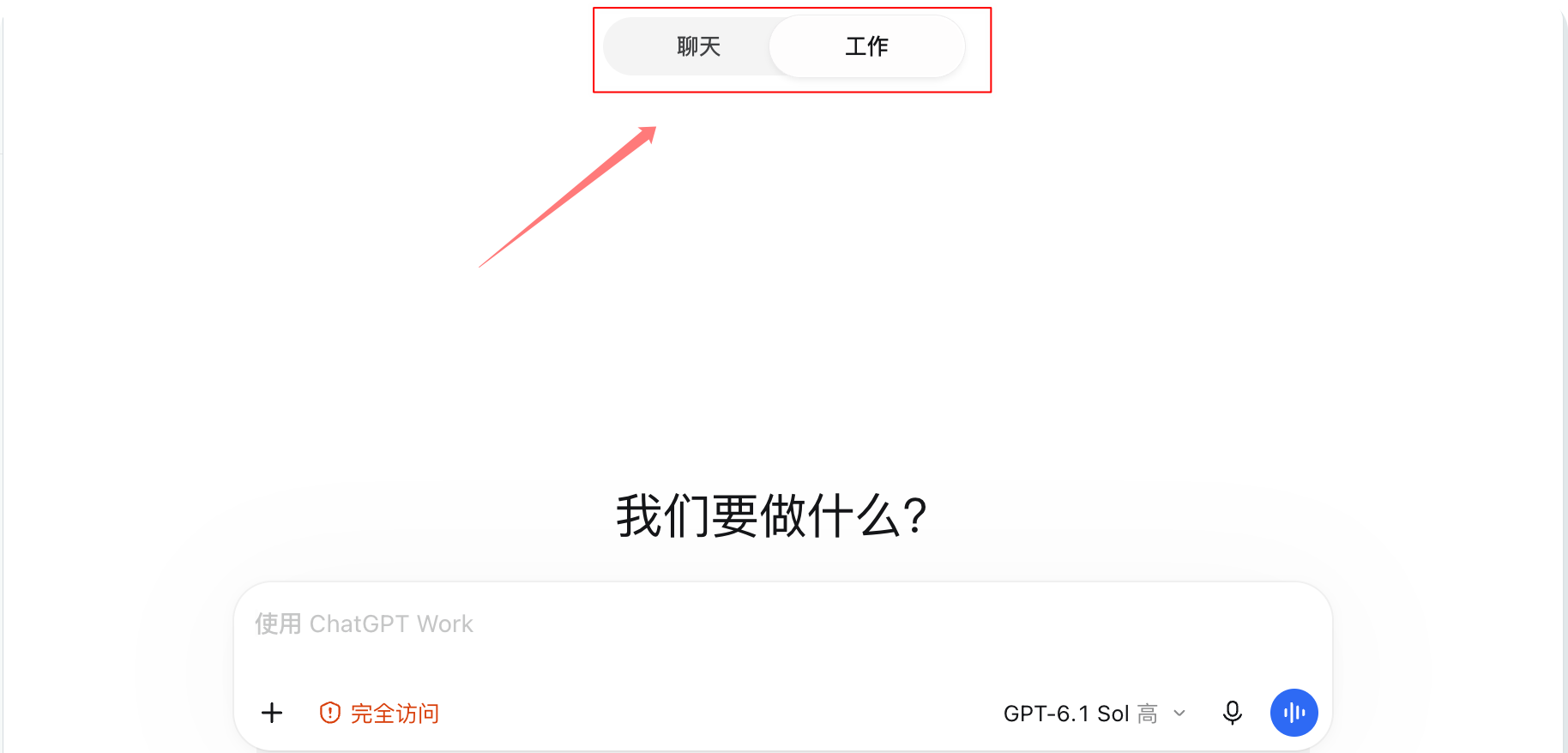
- Chat is the ChatGPT you know. Use it to ask questions, look things up, and research. The Q&A quota on the ChatGPT website is generous in my experience, and you can keep asking.
- Work (ChatGPT Work, the side where Codex does the work) can read the folder you chose, edit files, and carry out tasks for you.
- The permission option sits at the lower left of the input box. In the screenshot it is the red "Full access". It is not limited to your project folder and can cause data loss, so beginners should switch it to a mode that needs your approval (called Ask for approval in the English interface).
My own workflow is: research and gathering information in Chat or on the website, where I find it works somewhat better than Work, then switch to Work to have it do the job once the plan is set. An example:
- In Chat, ask: "Compare three ways to add site search to a static website, list the pros and cons of each, and recommend one."
- Summarize the conclusion in a few sentences, switch to Work, and give the task using the four sentences from "How to write a good prompt": what, where to look, what not to touch, and how to know it is done.
Prefer the terminal? Install the CLI
The official docs now list the install script first.
macOS, Linux:
curl -fsSL https://chatgpt.com/codex/install.sh | sh
Windows (PowerShell):
powershell -ExecutionPolicy ByPass -c "irm https://chatgpt.com/codex/install.ps1 | iex"
Other ways:
npm install -g @openai/codex       # npm, needs Node.js and npm first
brew install --cask codex          # Homebrew. Note the --cask
Manual download: get the archive for your system from GitHub Releases, extract it, rename the file inside to codex, and put it on your PATH. The CLI builds cover macOS (Apple silicon and Intel) and Linux (x86_64 and arm64).
Older guides often show
brew install codex. It now has to bebrew install --cask codex.
Verify:
codex --version
If it prints a version number (like codex-cli 0.144.4), the install worked. To check the install, config, and sign-in, run codex doctor.

CLI sign-in and auth.json
Go to your project folder and run codex:
cd your-project
codex
On the first run, choose Sign in with ChatGPT and approve access in the browser. When it succeeds, return to the terminal and you can start asking.
A few sign-in commands:
codex login                 # Sign in through the browser (default)
codex login status          # Check whether you are signed in
codex logout                # Sign out
To sign in with an API key, pass the key from an environment variable rather than typing it into the command:
printenv OPENAI_API_KEY | codex login --with-api-key
What is auth.json?
Codex caches your sign-in, either in ~/.codex/auth.json or in your system's credential store (such as the macOS Keychain). The cli_auth_credentials_store setting decides which:
| Value | Meaning |
|---|---|
file | Stored in ~/.codex/auth.json |
keyring | Stored in the system credential store, and fails if it is unavailable |
auto | Uses the system credential store if possible, otherwise writes the file |
ephemeral | Kept in memory only, gone when the process ends |
Treat auth.json like a password. It holds access tokens. Do not upload it to GitHub, paste it into forums or tickets, or send it to anyone.
Signing in on a remote server
When the server has no browser, the docs give three options:
- Device code sign-in (beta, preferred): run
codex login --device-auth, open the link it gives you on your own computer, and enter the one-time code. You first need to turn on device code sign-in in your ChatGPT security settings or workspace permissions. - Copy the sign-in cache: sign in on a machine with a browser, then copy
~/.codex/auth.jsonto the same path on the server. - Forward the callback port: run
ssh -L 1455:localhost:1455 user@remote, then runcodex loginon the remote machine.
For automation, the docs recommend an API key.
How to write a good prompt
Let it read the project first, before changing anything:
What does this project do? How is the folder structured?
Where is the entry point? Walk me through the main flow.
Getting it to do work: four sentences
Once you are comfortable, when I want it to do something I put the task into four sentences:
- What: one sentence on the result you want.
- Where to look: which files or folders to check, so it does not wander through the whole project.
- What not to touch: files, formats, or dependencies that must stay as they are.
- How to know it is done: how the result is checked (tests pass, the change is visible on the page) and what it should report back.
A vague request:
Something is wrong with the article list, please fix it
The same request in four sentences:
The article list shows posts whose status is draft. It should show only published ones.
Look only at lib/posts.ts and the files under app/(zh)/posts.
Do not edit data/posts.generated.json. It is generated by a script.
When you are done, run npm run build and npm test, and once both pass, tell me which lines you changed.
OpenAI's official best practices recommend a similar four items: goal, context, constraints, and what done looks like. For complex or unclear tasks, the docs suggest using Plan mode first so it lists a plan, and you act after you have read it.
Permissions: sandbox and approvals
This is the part beginners should spend five minutes on. Codex has two independent switches:
Sandbox mode (what it is technically able to do):
| Value | Meaning |
|---|---|
read-only | Can only read files and run commands in a read-only sandbox. Going beyond the sandbox requires asking you |
workspace-write | Can read and edit files and run commands in the working folder. Writes are limited to the workspace, and network access is off by default |
danger-full-access | Can read, edit, and use the network without prompting. The docs say to be careful |
Approval policy (when it stops to ask you):
| Value | Meaning |
|---|---|
on-request | Commands the sandbox allows run directly. It asks before editing files outside the workspace or running commands that need the network |
never | Never asks, but is still bound by the sandbox |
The docs' default recommendations:
- In a folder under Git,
Autois recommended, which isworkspace-writewithon-request. - In a folder that is not under Git,
read-onlyis recommended. - Depending on your setup, Codex may start in
read-onlyuntil you confirm that you trust the folder.
Type /permissions in a session to switch. For example, switch to read-only when you only want to chat or read a plan. You can also set it at launch:
codex --sandbox read-only --ask-for-approval on-request
You can also put it in the config file (see config.toml below). To allow network access inside the sandbox:
[sandbox_workspace_write]
network_access = true
The most dangerous switch: --dangerously-bypass-approvals-and-sandbox (alias --yolo) turns off approvals and the sandbox together. The docs recommend it only in environments that are already isolated from outside. Beginners should not touch it.
On Windows there are two options, a native sandbox and WSL. See the official pages on the Windows sandbox and WSL.
AGENTS.md: help it remember project rules
Like a person, Codex does not remember your project in each new conversation. Write the rules in AGENTS.md and it reads them on every start.
Type /init in the project and it drafts an AGENTS.md for you to edit.
Codex looks for the file in two places:
- Global:
~/.codex/AGENTS.md(anAGENTS.override.mdtakes priority if present) - Project: from the project root (usually the Git root) down to the folder you are in, taking at most one file per folder
How they combine: files are joined from the root downward, and the ones closer to your current folder come later and override earlier ones. The combined size defaults to a limit of 32 KiB, and once it is reached no more files are added. If you have a lot to say, either raise project_doc_max_bytes in the config or split the instructions across subfolders.
The official example:
# ~/.codex/AGENTS.md (global)
- Prefer `pnpm` when installing dependencies.

# AGENTS.md (project root)
- Run `npm run lint` before opening a pull request.

# services/payments/AGENTS.override.md (subfolder)
- Use `make test-payments` instead of `npm test`.
To check what it actually read, run:
codex --ask-for-approval never "Summarize the current instructions."
When writing AGENTS.md, specific beats vague. "Run npm test after changes" works better than "care about code quality".
config.toml
Configuration is in TOML format. The usual locations:
| Location | Purpose |
|---|---|
~/.codex/config.toml | Your own global config |
<project>/.codex/config.toml | Project config, applied only to projects you marked as trusted |
/etc/codex/config.toml | System-wide (Unix) |
Priority from highest to lowest: command-line flags, project config, profile files, user config, system config, built-in defaults.
A minimal example that is enough for most people:
# ~/.codex/config.toml
approval_policy = "on-request"
sandbox_mode = "workspace-write"
web_search = "cached"
web_search accepts "cached" (the default), "indexed", "live", and "disabled". To turn on live search for a single run, add --search.
To choose a model, type /model in a session. That is less likely to go out of date than hard-coding one in the config.
In your editor: the IDE extension
VS Code, Cursor, Windsurf: search the extension marketplace for OpenAI's Codex extension and install it (the extension ID is openai.chatgpt). After installing, click the Codex icon in the editor's sidebar and sign in with your ChatGPT account.
"How do I open Codex in my IDE?" If you cannot see the icon, open the Command Palette (Cmd+Shift+P on macOS, Ctrl+Shift+P on Windows and Linux) and run Codex: Open Codex Sidebar.
JetBrains: open AI Chat and choose Codex as the agent. Xcode: start a new chat and choose Codex. For the details see the official IDE page.
Web and cloud
Submit tasks at chatgpt.com/codex and they run in the cloud, without using your computer. Cloud tasks require a ChatGPT account.
In the desktop app, when you create a new task, choose Work in → Cloud, then Select environment → Create environment. Codex inspects your repository and helps you set up and test the environment. In a terminal, codex cloud lets you browse cloud tasks and apply their changes locally.
Command cheat sheet
Terminal subcommands:
| Command | What it does |
|---|---|
codex | Start interactive mode |
codex "task description" | Start interactive mode with a one-line task |
codex resume | Resume an earlier session (--last picks up the most recent) |
codex exec "task" | Run non-interactively, good for scripts |
codex review | Run a code review non-interactively |
codex login / logout | Sign in / sign out |
codex mcp add / list | Add / list external tools |
codex update | Update to the latest version |
codex doctor | Check the install, config, and sign-in |
codex --cd <folder> | Set the working root folder |
Slash commands in a session:
| Command | What it does |
|---|---|
/init | Draft an AGENTS.md |
/status | Show the current session's configuration |
/permissions | Choose what Codex may do without asking |
/model | Choose the model and reasoning effort |
/review | Review the current changes and look for problems |
/mcp | Show connected MCP servers |
Connect external tools (MCP)
MCP lets Codex connect to outside services, for example documentation. Add one with a command:
codex mcp add context7 -- npx -y @upstash/context7-mcp
That writes to ~/.codex/config.toml and is equivalent to:
[mcp_servers.context7]
command = "npx"
args = ["-y", "@upstash/context7-mcp"]
After adding, run codex mcp list to see it, and type /mcp in a session to check the connection. Only connect servers you trust.
What if something breaks? Undoing changes
"How do I undo Codex changes?" is a common search. I could not find a built-in rollback command in the official docs, so the most reliable way is Git:
- Commit before you start. Then, whatever it changes, you have a point to go back to.
- See what it changed:
git statusshows which files changed andgit diffshows the details. You can also use/reviewin Codex. - To revert a single file:
git restore <file>. Note that this discards that file's uncommitted changes immediately, and once they are gone you cannot get them back. When unsure, rungit stashfirst to set the changes aside, and you can still retrieve them later.
What it is good at, and what to avoid
Good at: understanding an unfamiliar project, fixing small bugs, adding tests, editing docs, refactoring, reading error logs, and reviewing code.
Do not hand these to it on your first try:
- Changes to payment, permission, or account code. You must read every line yourself
- Bulk deletion of files or data
- Edits directly on a production environment
- Important projects with no backup and no commits
Security essentials
- Do not paste secrets to it, and do not write them into the project. Keep them in
.envand confirm.gitignoreexcludes.env. - Keep
~/.codex/auth.jsonlike a password. - Do not use
--yoloon a machine that holds important data. - Read the commands it wants to run and the addresses it wants to reach before you approve.
Updating
- If you installed with the script: re-run the same install command, or run
codex update. - If you installed with npm:
npm install -g @openai/codex@latest. - If you installed with Homebrew:
brew upgrade --cask codex.
One-page recap
- Have a ChatGPT account (on a plan that includes Codex) and a region where it works.
- Download the ChatGPT desktop app (macOS Apple silicon, Windows, Linux), sign in, choose Codex in the input box, and open your project folder.
- If you prefer the terminal, install the CLI with
curl -fsSL https://chatgpt.com/codex/install.sh | sh, go to the project folder, runcodex, and choose Sign in with ChatGPT. - Ask what the project does first, then use the "four sentences" to give it one small task.
- Commit with Git before you start. It works under
workspace-writepluson-requestby default. Adjust with/permissions. - Run
/initto generateAGENTS.mdso you do not repeat yourself on every start.
How it maps to Claude Code
| What for | Codex | Claude Code |
|---|---|---|
| Project instruction file | AGENTS.md | CLAUDE.md |
| Adjusting permissions | /permissions | Shift+Tab, /permissions |
| Generating the instruction file | /init | /init |
| Config folder | ~/.codex | ~/.claude |
| Adding MCP | codex mcp add | claude mcp add |
The matching guide is Claude Code Install and Usage Guide.